Find the Gifts button
Find Gifts in the left navigation of +1 Stone Skipping. If it has an alert badge, open it and check what your account can claim. The menu contents were not visible in the available gameplay, so a fixed schedule, reward list, or timer would be a guess. Read the panel in your own server before waiting for a gift.
There is also a glowing CLAIM chest near the starting area. It has shown “Join Group/Like To Claim!” with a Wins label below. Check the amount and any repeat condition in your own game; neither was clear enough to establish a fixed value. Treat the chest and Gifts menu as separate places to inspect unless the game connects them.
Claim only what the screen offers
Open Gifts, read each visible requirement, and press a claim control only when your account meets it. If a countdown is shown, use that live countdown; no stable schedule has been verified here. If the panel has a reward preview, inspect whether it grants Skill, Wins, a potion, an egg, or something else before building a plan around it.
| Visible place | What is confirmed | What you need to read live |
|---|---|---|
| Gifts button | It appears in the left navigation. | Panel contents, claim conditions, any timers. |
| CLAIM chest | It appears near spawn in recorded gameplay. | Current reward, eligibility, and whether it can repeat. |
| Chest condition text | “Join Group/Like To Claim!” was visible in one session. | Whether the condition still appears and how the game verifies it. |
| Reward notice | None was clearly captured for these claims. | What your account actually receives. |
If you choose to satisfy a group or like condition, follow the link or action displayed inside the Roblox experience rather than a random external claim page. Read the chest again afterward and look for a success or eligibility response. Do not assume that a button click granted a reward until the game confirms it or your relevant balance changes.
Keep gifts separate from codes and Shop offers
To redeem a reported code, look for the field at the bottom of Shop. Gifts has a button on the left, while the claim chest sits in the world. Start at the right place for the reward you want. A code, timed gift, group chest, and Shop purchase can show similar icons while following different conditions. Read the response at the claim point.
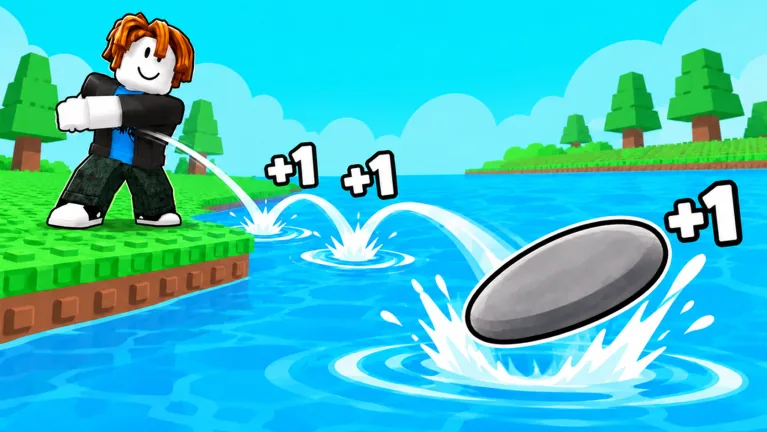
This matters when you count your resources. The official game description says farther zones award more Wins, while bounces grant +1 Skill at base. If your Wins total rises after a throw and you also click a chest, it is easy to misattribute the gain. Note the balance before and after each action separately. If an egg or boost appears, open the relevant Pets or Boosts tab to confirm the item before using it.
Make a short reward check part of your session
At the start of a play session, glance at the Gifts badge and the chest near spawn. Read their current claim state. Claim an available reward if its condition makes sense for you, then return to the throw-and-train loop. Do not wait at an unverified timer or repeatedly click a chest that still says you are ineligible. Your reliable progression still comes from Skill, levels, farther zones, better stones, and pets.
If your reward is a timed boost, activate it when you have time to use it. Timed 2x Skill and 2x Win chips have appeared on the HUD, but that does not show that Gifts grants them. Read the actual reward notice before deciding how to use the item.
FAQ
Where is Gifts in +1 Stone Skipping?
Recorded gameplay shows a Gifts button in the left navigation. Open it in your current server to read available rewards and conditions.
Is the glowing CLAIM chest the same as Gifts?
That relationship was not shown. The chest is in the world, while Gifts is a menu button; check each separately.
What does the chest require?
One recorded frame displayed “Join Group/Like To Claim!” on the chest. Read its current text before acting, since requirements can change.
How often can I claim Gifts?
The captured footage did not show the Gifts panel or a schedule. Use any countdown or claim state displayed in your live game.
How do I know a reward was granted?
Read the success notice and check the relevant Wins, Skill, Pets, Eggs, or Boosts display. Do not count a reward from the icon alone.